Home›
Blog›
Best STEM Simulation Tools for Classroom Teachers in 2026
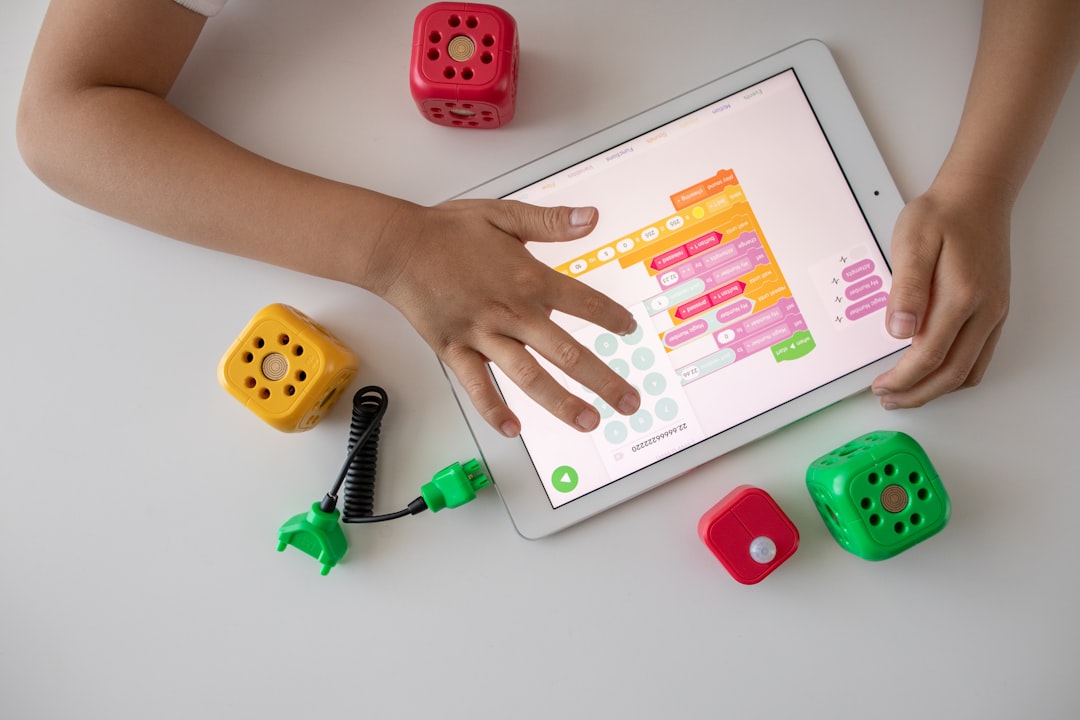
You’re standing in front of a classroom of curious faces, trying to explain why the sky is blue or how a pendulum swings — but the textbook just isn’t cutting it. You need something that lets students see, touch, and experiment with science and math concepts in real time. That’s where STEM simulation tools come in. In 2026, the best tools aren’t just interactive — they’re intelligent, adaptive, and free. They let students change variables, run experiments, and get instant AI explanations — no lab equipment required.
Why This Matters: Beyond the Textbook
Imagine teaching Newton’s Laws and watching students feel gravity by dropping virtual objects from different heights. Or explaining photosynthesis while students adjust sunlight, CO₂, and water to see how plants grow. These aren’t just animations — they’re interactive labs that adapt to each student’s pace. Research shows that students retain up to 75% more when they simulate, experiment, and visualize concepts instead of just reading about them. And in 2026, the best tools do more than simulate — they explain, quiz, and track progress automatically.
What Makes a STEM Simulation Tool Great for Teachers?
Not all simulations are created equal. The best STEM simulation tools for classroom teachers in 2026 share these key features:
- Curriculum-Aligned: Pre-mapped to CBSE, NCERT, Common Core, GCSE, IB, and AP standards — no extra work for you.
- AI-Powered Explanations: Instant AI feedback after every experiment — like a personal tutor in every lab.
- No Setup Required: Run in any browser, no downloads, no logins (unless you want progress tracking).
- Adaptive Learning: Adjusts difficulty based on student responses — perfect for mixed-ability classrooms.
- Teacher Dashboard: Track progress, generate quizzes, and assign “what-if” challenges — all in one place.
These tools aren’t just for students — they’re time-savers for teachers. Imagine generating a quiz in seconds, or seeing which students are struggling with friction or projectile motion — all from a single dashboard.
Top Free STEM Simulation Tools for Classroom Teachers in 2026
1. anAIza School by SPYRAL: AI Labs That Teach Themselves
anAIza School is the only platform that combines interactive simulations with AI explanations after every experiment. Students can:
- Run physics labs (forces, motion, energy) and get instant AI feedback.
- Simulate chemistry reactions (acid-base, redox) and see molecular changes in 3D.
- Visualize math concepts (calculus, vectors, conic sections) with real-time graphing.
- Track progress automatically — no grading required.
It’s like having a virtual lab assistant that explains every step. And it’s free for teachers and students worldwide.
⚗
Try This Simulation Free
Open the interactive simulation on anAIza School — no download, no signup needed.
Open Simulation →Change the variables yourself — see what happens in real time.
2. PhET Simulations: The Gold Standard (With a Twist)
PhET has been a classroom staple for years, and for good reason. Their simulations are free, high-quality, and cover physics, chemistry, biology, and math. But in 2026, they’ve added AI-powered guided inquiry — students get hints and explanations as they explore. Still, PhET lacks automatic progress tracking and curriculum mapping, which is where tools like anAIza fill the gap.
3. Labster: Virtual Labs for Advanced STEM
Labster offers immersive 3D virtual labs for high school and college students. While it’s not free, many schools use it for AP, IB, and college prep. Labster’s simulations are gamified and story-driven — students solve real-world problems in a virtual lab. But for budget-conscious teachers, free alternatives like anAIza and PhET offer similar value without the cost.
4. GeoGebra: Math Simulations That Click
GeoGebra is a free math powerhouse — from algebra to calculus, geometry to statistics. Students can manipulate graphs, solve equations visually, and even run probability simulations. It’s perfect for visual learners who need to see math in action. But it lacks the AI explanations and curriculum mapping that make anAIza a complete package.
5. CK-12 FlexBooks: Simulations + Textbook
CK-12 combines interactive simulations with textbook content. It’s great for blended learning — students read, simulate, and quiz in one place. But the simulations are less immersive than PhET or anAIza, and the AI features are limited.
How to Use STEM Simulations in Your Classroom (Without Losing Control)
Step 1: Start Small — One Concept at a Time
Don’t overwhelm yourself (or your students). Pick one unit where simulations shine — like Newton’s Laws, photosynthesis, or projectile motion — and run a 15-minute lab. Use anAIza’s pre-built labs to save time.
Step 2: Let Students Experiment — Then Discuss
Instead of lecturing, give students a challenge: “What happens if you double the mass of the pendulum bob?” Let them simulate, observe, and hypothesize. Then discuss as a class. This flips the classroom — students learn by doing, not by listening.
Step 3: Use AI to Reinforce Learning
After the simulation, anAIza’s AI explains the results in simple terms. Students get instant feedback — no waiting for you to grade papers. You can use this time to circulate, ask questions, and guide deeper thinking.
Step 4: Track Progress Automatically
With anAIza’s teacher dashboard, you can see which students are struggling with friction or projectile motion. Generate quizzes in seconds, or assign “what-if” challenges for advanced students. No extra work — just insights.
What If You Changed This? 3 Real-World What-If Scenarios
Scenario 1: What if you remove air resistance in a projectile motion simulation?
In anAIza’s projectile motion lab, students can toggle air resistance on and off. Watch how the trajectory changes — no messy calculations, just real-time visualization. Ask: “Why do real-world projectiles fall short?” Let students hypothesize, then simulate to confirm.
In anAIza’s photosynthesis lab, students adjust sunlight, water, and CO₂ to see how plants grow. Increase CO₂ — what happens to the oxygen output? Students can see the direct impact of environmental changes on plant life. Perfect for ecology or biology units.
Scenario 3: What if you change the coefficient of friction in a block-on-ramp simulation?
In anAIza’s friction lab, students can adjust the surface material and angle. What happens when you switch from wood to ice? Students can feel the difference — literally — as the block accelerates or sticks. Great for physics or engineering units.
Which Tool is Right for You? A Quick Comparison
| Tool |
Best For |
AI Explanations |
Curriculum Mapping |
Progress Tracking |
Cost |
| anAIza School |
All STEM subjects, all curricula |
✅ Yes |
✅ CBSE, NCERT, Common Core, GCSE, IB, AP |
✅ Automatic |
Free |
| PhET |
Physics, chemistry, biology, math |
❌ Limited |
❌ Manual |
❌ Manual |
Free |
| Labster |
Advanced STEM, college prep |
✅ Yes |
✅ AP, IB, college |
✅ Automatic |
Paid |
| GeoGebra |
Math (all levels) |
❌ No |
❌ Manual |
❌ Manual |
Free |
| CK-12 |
Blended learning (text + sims) |
❌ No |
✅ Common Core, NGSS |
✅ Automatic |
Free |
Teacher Tips: How to Maximize STEM Simulations in 2026
Tip 1: Use Simulations for Pre-Lab Prep
Instead of spending time setting up real labs, have students simulate the experiment first. This reduces setup time and helps students understand the concept before touching real equipment.
Tip 2: Assign “What-If” Challenges for Homework
Use anAIza’s inventor mode to assign open-ended challenges: “What happens if you triple the spring constant in Hooke’s Law?” Students simulate, record results, and explain their findings. No grading required — just insights.
Tip 3: Gamify Learning with Quizzes
Use anAIza’s quiz generator to create instant quizzes based on simulation results. Students answer questions about their experiments — and get immediate feedback. Perfect for formative assessments.
Tip 4: Share Simulations with Parents
Send parents a link to anAIza’s public labs so they can see what their child is learning. Parents love seeing real-time experiments — and it reinforces classroom learning at home.
FAQ: STEM Simulation Tools for Classroom Teachers in 2026
Are STEM simulation tools really free for teachers?
Yes! Tools like anAIza School, PhET, GeoGebra, and CK-12 offer free access to teachers and students worldwide. Some platforms (like Labster) charge for premium features, but free alternatives cover 90% of classroom needs.
Do I need special software or hardware to run simulations?
No! All the tools mentioned run in a web browser — no downloads, no logins (unless you want progress tracking). Students can access them on Chromebooks, iPads, or even smartphones.
How do AI explanations work in simulations?
After every experiment, anAIza’s AI analyzes the results and provides a simple, step-by-step explanation in plain language. For example, if a student runs a projectile motion simulation, the AI might say: “The ball travels farther because air resistance was turned off. In real life, air resistance slows the ball down.”
Can I track student progress with free tools?
Yes! anAIza School offers a free teacher dashboard where you can track progress, generate quizzes, and assign challenges. Other tools (like CK-12) also offer progress tracking, but with less detail.
Are these simulations aligned with Indian curricula like CBSE and NCERT?
Absolutely! anAIza School is pre-mapped to CBSE, NCERT, ICSE, and state boards. It also covers Common Core, GCSE, IB, and AP standards. No extra work required — just pick a topic and start teaching.
What’s the difference between anAIza and PhET?
PhET is a fantastic free tool, but it lacks AI explanations, automatic progress tracking, and curriculum mapping. anAIza combines PhET’s simulations with AI-powered teaching — making it a complete solution for busy teachers.